Wild Dunes Resort - beach walkway
Sweetgrass Inn Logo Boardwalk Inn Logo Residences at Sweetgrass Inn Logo Vacation Rentals Logo

Your adventure awaits

Book your Stay

Book now
Wild Dunes Resort Coast from Above.

Owner Portal Instruction Guide page!

By now you should have received an invitation to join your new Owner Portal. This secure portal is your go-to hub for property updates, communication with our team, and important ownership tools.

Please be sure to accept the invitation within 72 hours, as it will expire after that window. If it does expire, or if you don’t see the email come through, simply reach out to your Residence Managers, and we’ll be happy to send you a new one.

Where to login:

https://wilddunesvacations.trackhs.com/owner

A screenshot of the TRACK Platform header with menu items: Dashboard, Availability, Reservations, Statements, Work Orders, Documents, Messages. The numbers 1–7 appear below as steps or tabs.

Click on each section below to expand information

1. Dashboard

When first logging in to the Owner Portal, you will reach your Dashboard. This screen will show you:

● The number of check-ins (arrivals) and check-outs (departures) occurring in your Unit(s) during the current month.

● The number of Work Orders performed in your Unit(s) during the current month.

● The number of new Reservations (bookings) that have been in your Unit(s) during the current month, along with the sources of those bookings.

A dashboard showing today’s bookable items: 1 total check-ins, 2 check-outs, 0 work orders, 1 reservation; charts display arrivals/departures and a green pie of reservation types.

2. Availability

Here, you are provided with Reservations (bookings) across your Unit(s) for the current year (as well as prior years, using the year drop-down), in both a calendar view and list view. Owner bookings will show as black boxes on the calendar.

Helpful tip: if you own more than one Unit, you can toggle between your Units using the Unit drop-down list.

A screenshot of a booking/calendar UI. It shows a timeline calendar (months Sep–Dec) with a blue header, and a Reservations table below listing stays for multiple guests, including check-in/out dates, names, source, nights, and type (Guests). The page header indicates TRACK Platform. End.

3. Reservations

Here, you can see all prior, current, and future Reservations in your Unit(s). You can also create a new booking in your Unit(s), by clicking the green “+New Reservation” button towards the top-right corner.

Helpful tip: You can toggle between using "guest of owner" or "owner" when reserving a stay.
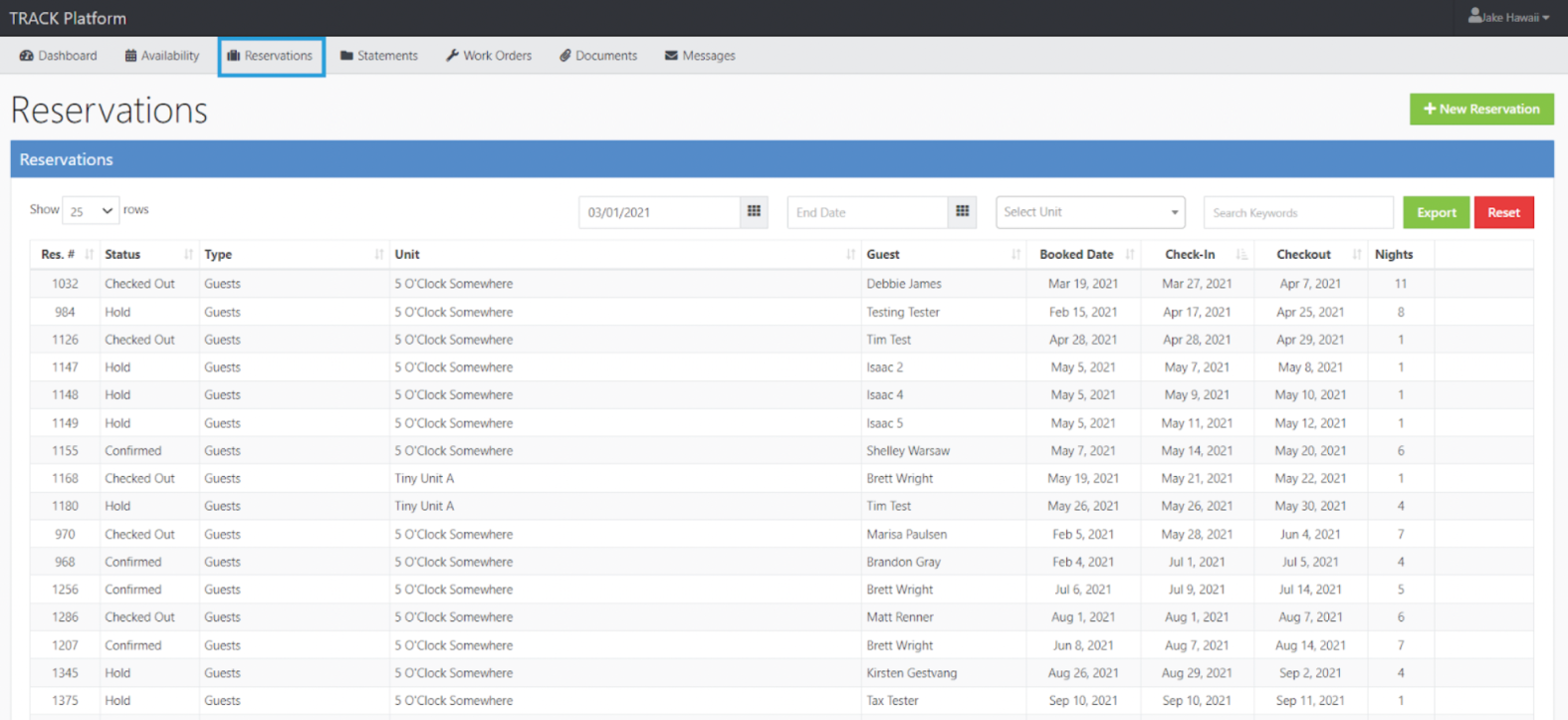
It shows a reservations dashboard listing guest bookings with details like reference, status, type, unit, guest, check-in/out dates, and room count, plus export and filter options.It shows a reservations dashboard listing guest bookings with details like reference, status, type, unit, guest, check-in/out dates, and room count, plus export and filter options.

4. Statements

You can see your monthly Owner Statements here, once they’ve been published; year-end tax forms are also accessible here. Access either type of document by clicking on the applicable line item’s PDF button.
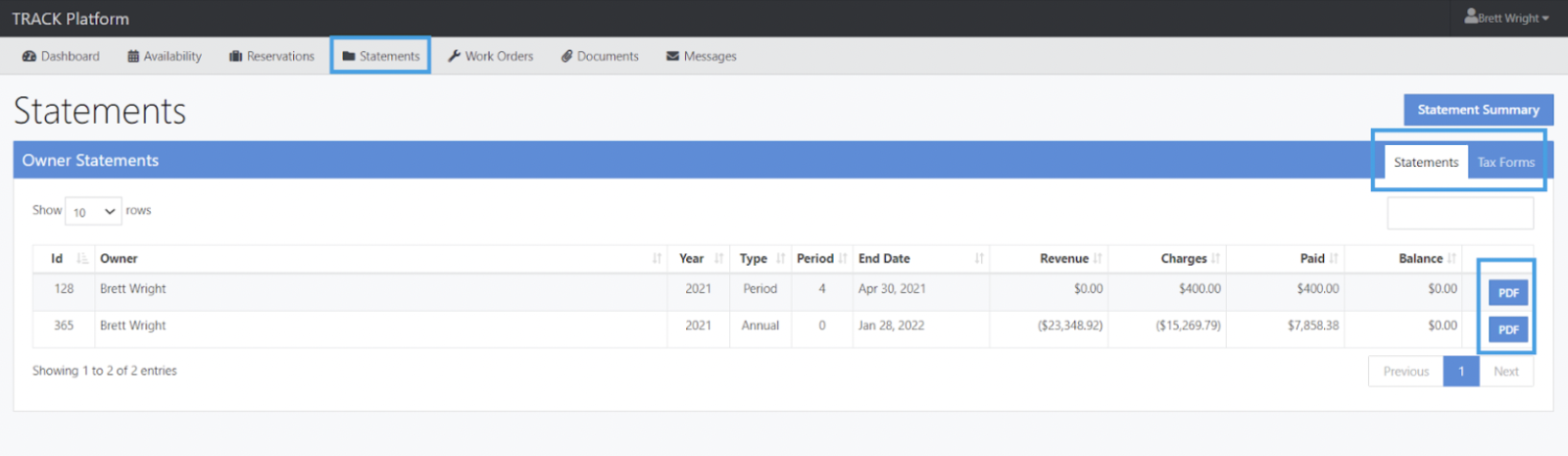
A screenshot of a web app called TRACK Platform, showing the Statements page with Owner Statements. It has a table listing two entries (Id 128 and 365), owners named Brett Wright, year 2021, period 4 and annual, with revenue, charges, and balance columns. The right side has a Statement Summary with tabs for Statements and Tax Forms and a PDF/download button. The top navigation shows Dashboard, Availability, Reservations, Statements, Work Orders, Documents, Messages. The UI uses blue accents and a pagination area.

5. Work Orders

You will be able to see Work Orders that have been completed in your Unit(s), by month, along with any associated charges that you’ve incurred from any of those Work Orders.
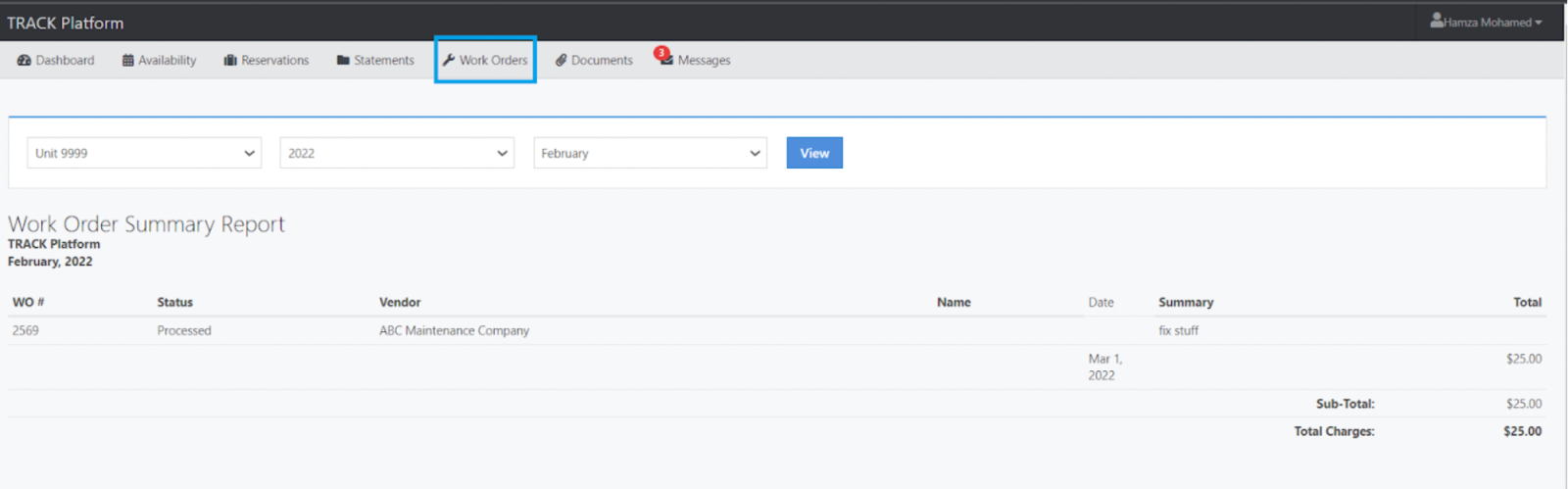
Work Orders tab shows a processed order from ABC Maintenance Company for “fix stuff” totaling $25.00 in February 2022.

6. Documents

Various documents may be shared with you; to access any Documents you see here, click the applicable line item’s View button.
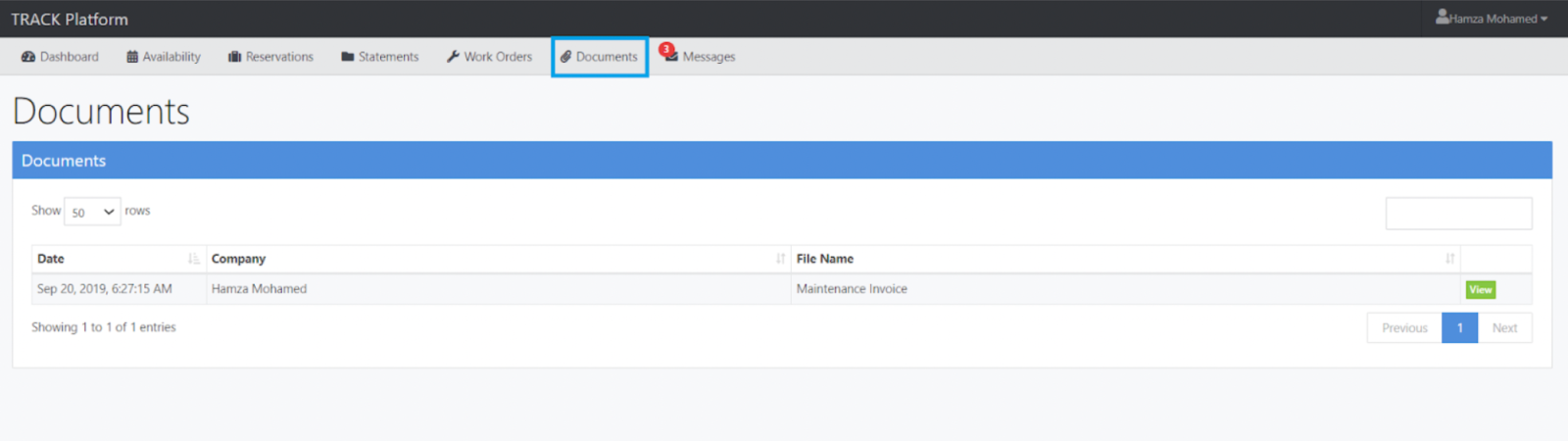
There’s a screenshot of a web app titled “Documents.” It shows a list with one entry: Date Sep 20, 2019; Company Hamza Mohamed; File Name Maintenance Invoice; a “View” button on the right, plus navigation controls.

7. Messages

On this tab, you can access messages sent to you, as well as generate a new message.